Shadowrocket Setup Guide
Follow the steps in order: import, choose a mode, connect, test, and troubleshoot. First establish a connection you can verify, then adjust automatic connection settings and more complex rules.
This guide covers first-time setup on iPhone and iPad. Connect your device to a working Wi-Fi or cellular network, make sure ordinary webpages load, and have the original details from your service provider ready. Subscription URLs often contain access credentials, so enter them only in the app. Manual setup requires the exact protocol, server address, port, and relevant authentication details; a server name alone isn't enough to get started.
Follow the labels shown in your version of the app; interface terms remain in English. The official App Store screenshot alongside this guide helps you identify the screen, but its server settings are examples—not values to copy. The iPad layout may change with window size, but the steps still use Home, Config, and Settings. Check the App Store listing for device compatibility and system requirements.
01 Add a Server or Import a Subscription
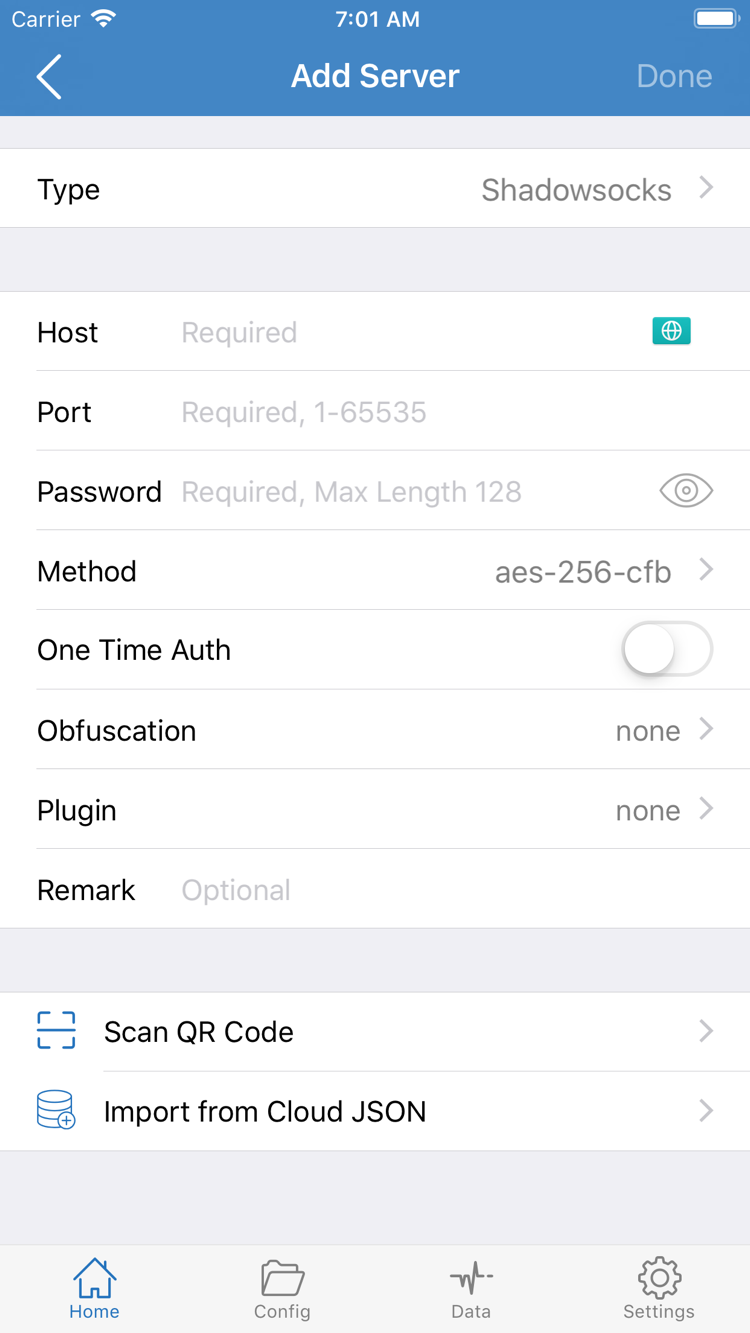
Choose either subscription import or manual setup; there's no need to add the same details twice. Go to Home, find Add Server or the add button, and open the Add Server screen. Check Type first—it determines which fields you'll need. The screenshot shows one possible field layout. Other protocols may require different authentication or transport options, so don't treat the screenshot as a universal form.
Use an Existing Subscription: Select Subscribe
If you have a subscription URL, select Subscribe under Type, paste the complete link into URL, add a recognizable name to identify its source, and save. Check that no spaces, line breaks, or chat text were added at either end. Don't mistake your provider's login page for a subscription URL. Authentication parameters may be part of the URL; removing them could prevent the subscription from loading.
After saving, return to Home and check for a subscription group and server entries. If only the group name appears, check the subscription update result and use its update action if needed. Import is complete only when selectable entries appear—not simply when the save action finishes. If retrieval fails, keep the error message and check your network and the URL's validity. Don't create multiple copies of the same subscription.
Manual Setup: Choose Type, Then Fill In the Fields
If you have details for a single server, select Type based on the original information, then enter Host, Port, and any required Password, Method, or other authentication fields. Host is usually a server domain name or IP address; don't paste a full webpage URL there. Use the port provided by your service provider. Preserve the exact capitalization and symbols in Password, and make sure Method matches the server configuration—don't substitute a similar-sounding option.
Use the server details you already have for TLS, server name, and transport settings as well. If the connection fails, don't disable verification or remove required fields at random. Scan QR Code is for scanning a QR code you already have and trust. Import from Cloud JSON is a separate import option; use it only if you have data in the required format. It doesn't mean every subscription can be imported this way.
After saving, return to Home and select the entry you want to test under SERVER. Use a single entry for the next steps; leave automatic switching and complex policies aside so you can pinpoint where a problem occurs. You're ready to continue when a saved server entry appears on Home and one entry is selected. Next, choose how traffic will be handled.
02 Choose a Global Routing Mode
Global Routing sets the overall traffic-handling mode; selecting a server doesn't choose how traffic is routed. On Home, open Global Routing and check whether Config, Proxy, or Direct is selected. These modes serve different purposes; they aren't connection quality levels. Decide whether you want to use rules as usual or temporarily test the server path before choosing a mode.
Config: Apply the Rules in the Selected Configuration
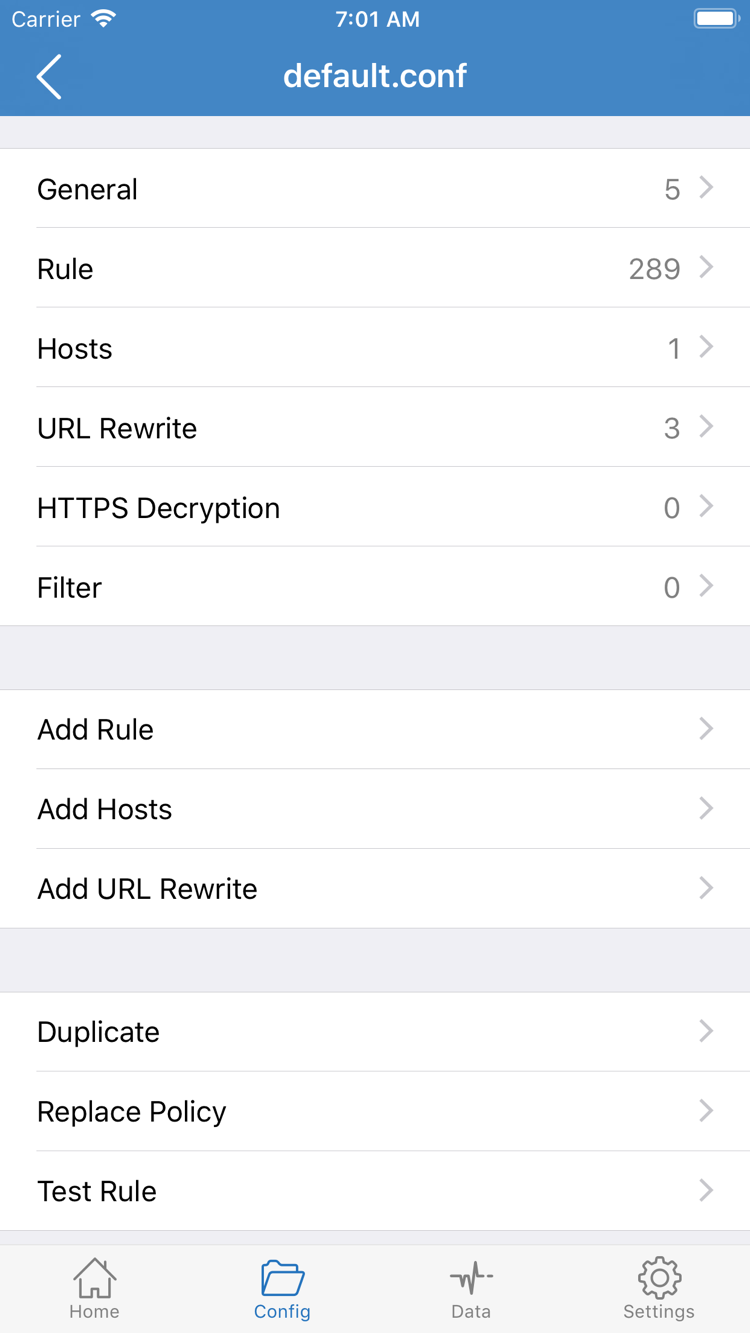
If you have a suitable configuration, select Config. Then open Config and confirm that the configuration you want to use is actually selected—not just that a file was imported at some point. General, Rule, Hosts, URL Rewrite, and HTTPS Decryption cover different settings. For a first connection, check the selected configuration and Rule; you don't need to edit every section.
Rules determine which policy handles each request. They are generally checked in order, so an earlier match can determine the final route. The final rule, FINAL, acts as a fallback. For example, if a domain matches DIRECT, that request uses the direct connection path. Selecting a server on Home won't automatically send that request through PROXY. Knowing this helps distinguish an expected direct route from a connection that isn't working.
Proxy: Test the Proxy Route
During initial troubleshooting, Proxy can help reduce the effect of rules: select the same server and test the same target again. This still doesn't guarantee that every target will be reachable; server connectivity, DNS, the target service, and other settings can all affect the result. When you're done testing, return to the original Config if you normally rely on rules, and confirm the configuration is still selected.
Direct: Test the Direct Connection Path
Direct connects without normally using the selected proxy server as the request's exit point. It's useful for comparison with the proxy path, but doesn't show whether the proxy server works. If ordinary webpages load after switching to Direct, that only shows the request succeeded over the direct path. Check the server and configuration separately; don't conflate results from the two paths.
Choose one mode for this step and make a note of it. Don't change rules, switch servers, and change DNS at the same time; otherwise, you won't know which setting affected the result. You're ready to continue when you can identify the selected mode and confirm whether a configuration is selected for Config. For purchases, storefront regions, and restoring a purchase, see The Complete Guide to Getting Shadowrocket from the App Store. Changing rules here won't resolve those issues.
03 Turn On the Connection
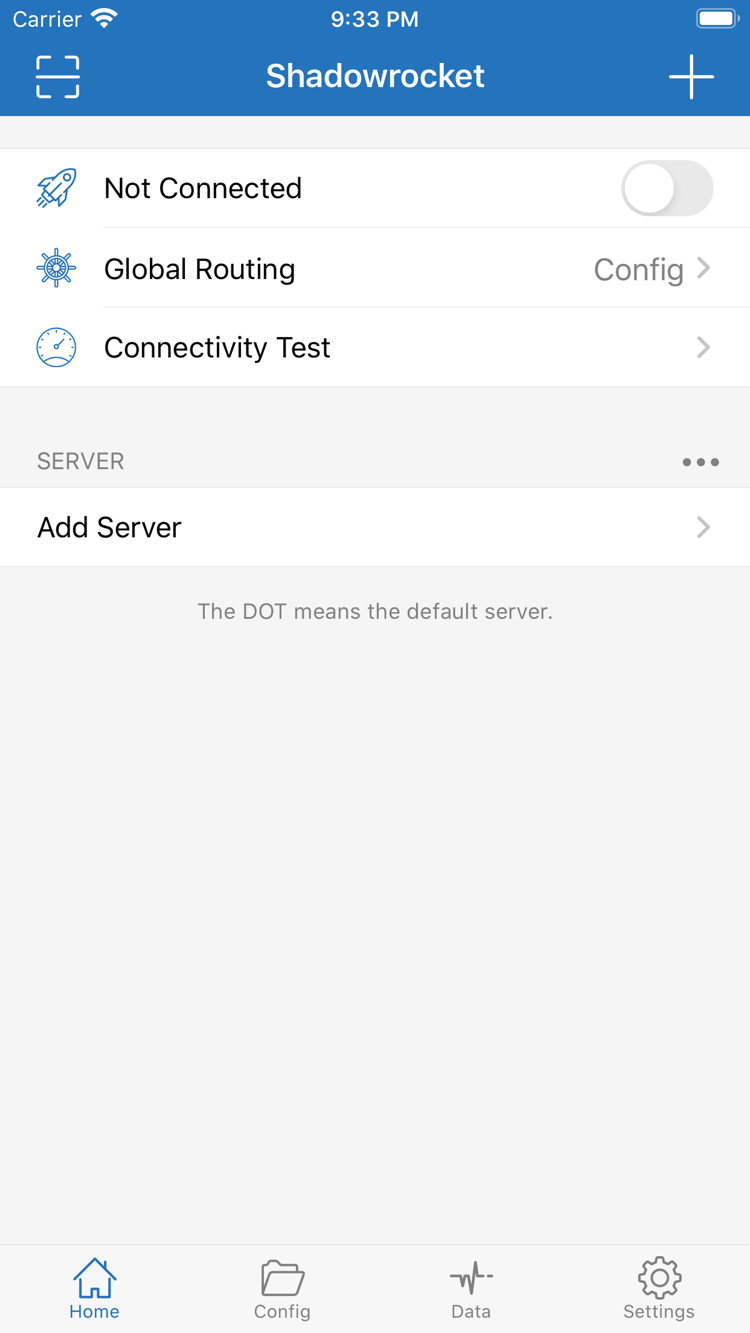
Confirm the server and mode before turning on the connection switch at the top of Home. Return to Home, check the selected entry under SERVER, and review Global Routing. If you've just edited a server, make sure you saved your changes and exited the editor. Not Connected at the top means no current connection has been established. The presence of a server in the list doesn't mean a connection has started.
The first time you turn on the switch, the system may ask to add a VPN configuration. This authorization is required for the app to create a network configuration. Verify that the prompt is for the Shadowrocket you're using, then follow the device's instructions and complete any required authentication. If you previously denied the prompt, try connecting again and check for it. Don't remove other network configurations from your device unless you know what they're for.
After approving the prompt, return to Home and check whether the status at the top shows connected. If the switch immediately turns off or the status remains disconnected, note the error and check Troubleshooting. Don't toggle the switch repeatedly. If another VPN configuration is active in system settings, check which one is actually enabled so you don't mistake its status for this connection.
Important: A connected system tunnel only means the network configuration is running. It doesn't confirm that the selected server is handling every request successfully or that a particular website is reachable. Keep the current server and mode unchanged and check an actual request in the next step. The switch at the top—or the network indicator in the device status bar—alone isn't enough to verify the connection.
To disconnect during testing, return to Home, turn off the switch, and confirm the connection has stopped. If it turns back on automatically, don't keep toggling it; check the On Demand conditions in Settings. You're ready to continue when you understand the authorization prompt and can confirm the connection status change on Home. Next, verify with both a test and an actual request before adding more settings.
04 Check Test Results and Actual Access
Check connection status, server test results, and access to the target separately; none of these can replace the others. Keep the same server and Global Routing mode, and run Connectivity Test on Home. Check whether it returns a result or times out, then open a familiar webpage you can verify right now and see if it loads fully. Don't rely on a single number, or mistake content already in the webpage cache for a new successful request.
What Connectivity Test tells you depends on the selected test method. A successful result doesn't prove that every protocol feature works or that every website and app will be accessible. A timeout also needs to be evaluated in the context of the method and actual requests. If the test succeeds but one target fails, check that target, DNS, and its rule path rather than assuming all servers are unavailable.
With Config, Check Which Policy Handles the Request
If Config is selected, use the connection logs available in the app to check the target request. Look for the target domain, the matched rule, and the policy used. A request expected to connect directly should match DIRECT; one expected to use a proxy should match the relevant proxy policy. Changes in Data usage can provide context, but a change in total traffic alone can't confirm which rule handled a specific target.
To compare modes, note the current Config, switch temporarily to Proxy, and visit the same target using the same server. If it works in Proxy but not Config, check the selected configuration, rule order, and policy associations first. If both fail, check the server details and network path. Restore the original mode afterward so a temporary setting doesn't affect later use unexpectedly.
Change One Setting at a Time
Keep a brief record of four things: current network, selected server, Global Routing mode, and error message. Change just one condition for the next round, then repeat the same test. For example, switch between Wi-Fi and cellular without changing the password or DNS at the same time. Comparing results this way can narrow down the issue and make it easier to describe to your service provider.
You're ready to continue when an actual request succeeds and follows the expected route. If only one app, domain, or type of request fails, keep that specific detail in mind as you troubleshoot. Don't describe a partial failure as “everything is disconnected.” Once you've confirmed the initial setup, restore or add custom rules gradually.
05 Troubleshoot Common Issues in Order
Check network, import, settings, rules, and DNS in order; don't reset everything at once. First disconnect and confirm that your Wi-Fi or cellular network works. If the network requires a sign-in, complete it first. Until the basic network connection is confirmed, repeatedly updating a subscription or recreating server entries is unlikely to reveal anything useful.
No Subscription Entries? Check the Fetch Result
Open the saved Subscribe entry and check that the URL is complete and still valid, then review the message shown during the update. A failed subscription download and a connection failure for a server in the subscription are different problems: for the former, check retrieval and content format; for the latter, check server settings and availability. Keep any existing working entries before updating. Don't delete them all before you know why the update failed.
Entry Is There but Won't Connect? Check Each Field
Open the server's edit screen and compare Type, Host, Port, authentication fields, and transport settings against the original details. With TLS, check the server name and related parameters as well, and make sure the system date and time are correct. Don't check only Password; the wrong protocol, port, or required transport field can also cause a timeout or connection failure. If the server details have changed, use the updated information from your service provider.
Some Requests Fail? Check Rules and DNS
First make sure Global Routing isn't still set to a temporary test mode. With Config, confirm the selected configuration and the matched rule. If only a specific domain is affected, check whether its request followed the expected policy. Before changing DNS, keep a record of the current settings and distinguish a domain resolution failure from a connection failure after resolution. Change one setting at a time. DNS changes aren't a universal fix.
Review Test and Automatic Connection Settings in Settings
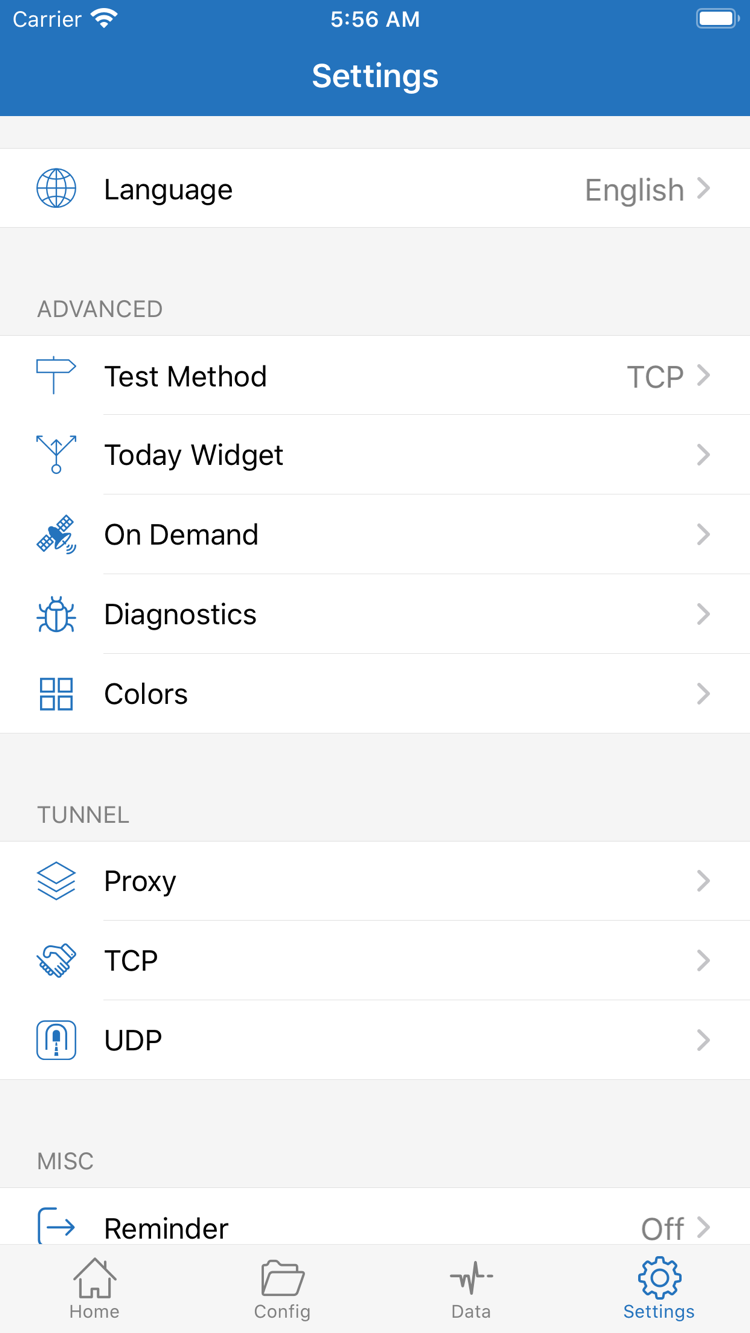
In Settings, you can find Test Method, On Demand, and Diagnostics. Test Method affects how to interpret results, so use the same method when comparing tests. On Demand may trigger a new connection when its conditions are met. If the connection comes back after you turn it off manually, check those conditions instead of assuming the top switch is broken. For initial troubleshooting, you can temporarily disable the relevant automatic triggers, test a manual connection, and then restore them.
If you use Diagnostics, review information about the failure that just occurred and note the time, network, server type, and error. Before sharing screenshots or diagnostic information, redact the full subscription URL, Password, authentication identifiers, and any other sensitive details. Keep only what's needed to troubleshoot. Specific records are more useful than saying “it doesn't work,” especially when the system shows a connected status but a target request fails.
After making a change, return to Connect and Verify the Connection. Repeat the same steps to confirm the result changed, then restore your usual Config and On Demand settings. For purchase account, storefront availability, or restoring the app on a new device, see the App Store Purchase Guide. Those issues follow a different process from checking existing server details and don't require rewriting network rules.